FAQ
Foire aux questions
Table des matières
Key concepts
See all definitions in our Glossary.
Buyer
A buyer is any public organization that launches opportunities (a.k.a. “tender”, “procedure”).
E.g. European Commission, European Parliament, a Ministry, a City Council.
Entrepreneur
A Contractor is a supplier of services, products, or works to an Buyer.
A Contractor is the winner of a procurement procedure (Opportunity).
E.g. a private company or a NGO.
Opportunity
An opportunity is basically a contract notice. An opportunity includes one or several lots. For each lot: one or multiple contracts awarded.
Award
A Contract Award is the result of a procurement procedure.
A contract can be awarded by an Buyer to one or several Contractors, or Consortia composed of several Contractors.
Consortium
A consortium is formed of consortium leader + members. The first Contractor in a Consortium is typically called the Leader.
Contract
A Contract is the result of a Contract Award. Contracts are awarded to a contractor or a consortium.
Industries, domains, topics, CPV codes
Industries, domains, and topics describe the services and products procured on the public sector market.
Hermix uses the standard official Common Procurement Vocabulary and the respective CPV codes.
- Industry is the largest classification of services and products. It contains domains and topics. Examples of industries are: Construction and ICT.
- A Domain is a direct correspondent of the CPV division in the CPV classification.
E.g., for the Construction industry, there are Domains such as ” architecture, construction, and engineering”.
- The Topic is a CPV code.
- Topics are specific classifications of all public procurement services or products, as defined by the official Common Procurement Vocabulary.
- E.g., for the Constructions industry, a Domain is ”architectural, construction, engineering”, and a opic is: “architectural and related services”.
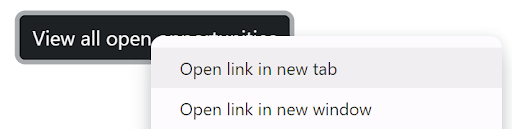
How to open links in a new tab?
Open links in a new tab with Ctrl+click or mouse wheel. Another option for opening the links in a new tab is to right-click + menu. See the screenshot below.
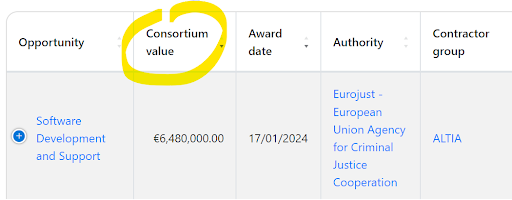
How to sort tables by multiple columns?
Sort a table by multiple columns at the same time, by holding down Shift and clicking on additional column names.
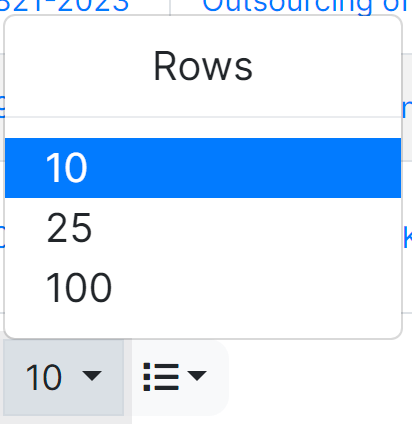
How to display more rows in a table?
To display more rows (lines) in a table, use the combo selector below the table.
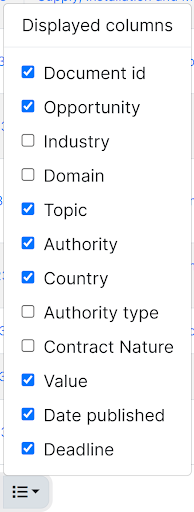
How to select what columns are displayed in a table?
To select which columns to be displayed in a table, and to show or hide columns, use the “Displayed columns” combo selector, below the table.
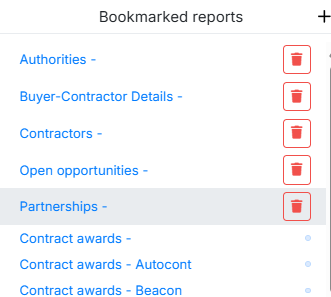
How to use bookmarked reports?
Use the bookmarked reports button in the top-right corner of the screen to save your preferred reports and filters.
La prochaine fois que vous en aurez besoin, ils seront déjà enregistrés et configurés pour être utilisés.
They are also available in your list of bookmarked reports.
How to search for opportunities?
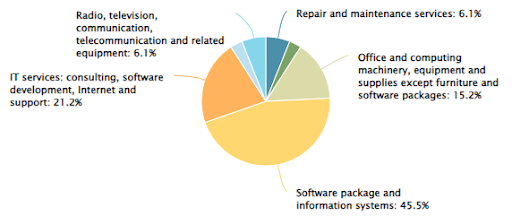
To find new tenders, you can use reports like these:
- IT tenders for EU institutions, by industry
- IT tenders for EU institutions, by keyword
- Communication tenders for EU institutions
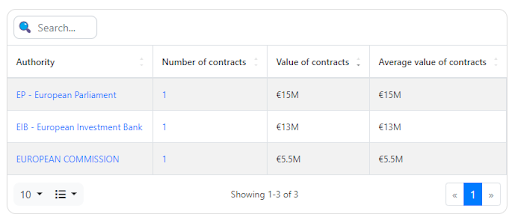
You can also see analyses of a company's portfolio, market, and partnerships. E.g. here are some reports for Getronics:
Limitations of the search function
Only one boolean operator can be used in a search query. Choose to search for ALL or ANY of the keywords.:
- Do NOT use Boolean operators (AND, OR, NOT);
- Instead, use the toggle:
How to search for keywords in the title and description of opportunities?
Search opportunities containing ALL or ANY of a set of keywords. Use the ALL / ANY selector to switch between the 2 options.
The “Full-text search” looks for keywords in the following fields of each Opportunity:
- Opportunity title.
- Short description.
- Additional information.
- Document ID of the notice.
- Number of the Supplement to the Official Journal where the notice is published (OJ S).
The “Full-text search” looks for keywords in the following fields of each Renouvellements:
- Opportunity title.
- Short description.
- Additional information.
- Document ID of the notice.
- Number of the Supplement to the Official Journal where the notice is published (OJ S).
- Year tendered.
- Duration.
- Value.
- Buyer.
- Year renewal.
- Average tenders submitted.
- Likely competitors.
The “Full-text search” looks for keywords in the following fields of each Contract Award:
- Opportunity title.
- Short description.
- Additional information.
- Document ID of the notice.
- Number of the Supplement to the Official Journal where the notice is published (OJ S).
- Reference to the related contract notice.
- Lot number.
- Contract number.
- Contractor.
Limitations of the search function:
- Only one boolean operator can be used in a search query. Choose to search for ALL or ANY of the keywords.
Languages available when searching for opportunities:
- In Notifications or when searching for Opportunités or awards, searching for word variants is only available in English. E.g. learned ~ learn
- More languages will be supported in the future.
How to create effective email alerts/filters
- Choose the Industry, then drill-down to Domains (i.e. CPV division).
- Avoid using Topics (CPV codes). They are too specific, thus difficult to manage.
- Search either by Keyword, or by Industry/Domain – not both.
- Using both simultaneously could restrict the search excessively.
- Of course, unless you look for a very specific, very rare type of project.
- Search either by Buyer country or Buyer type: European/international institutions.
- E.g., European and international institutions have offices in multiple countries, so the country is less relevant for them.
- Avoid very wide filters
- E.g.,”IT for the entire Europe”, or ”all tenders in 20 countries”. Hermix analyzes cca. 3000 tenders daily. A very wide filter return very many (irrelevant) results.
- Avoid filtering by a specific Buyer (or Contractor)
- It is always possible that a tender might be published under a wrong / different Buyer Name, and with wrong contact details. In this case, the tender would not be classified under the correct Buyer.
- E.g. a Buyer such as ”EC – DG DIGIT – Directorate-General for Informatics” might publish a tender under a wrong Buyer, e.g. ”DIGIT”, or ”EC”.
- A good practice is to extend the search, e.g. to search by Buyer type rather than Buyer name.
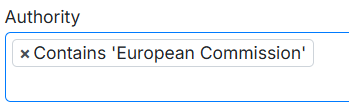
- Another option is to search by keywords included in the Buyer name, such as ”Starts with…” or ”Containts…”
Examples:
How to set default profile filters?
Click the Hermix Setup button on the top-right corner and set them in My default filters section.
Select your default Buyer types, Buyer tags, Buyer countries, CPV codes, Place of performance, Data source.
Tips for smart email alerts
Method 1: In the Notifications menu: click ”Add” to create a new notification.
Method 2: In any report with tenders, click on the ”bell” to create a notification.
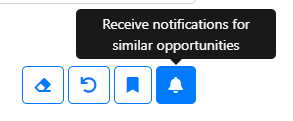
The same ”bell” button is available in each opportunity profile, so you can easily monitor news related to that particular tender.

Recommendation: use either a filter by industry + buyer type, or by keywords.
Comment identifier des opportunités et gérer son propre pipeline ?
Pour signaler des opportunités et les rendre disponibles dans votre pipeline, vous pouvez utiliser la fonction de signalement. Les signalements sont visibles par tous les membres de votre organisation.
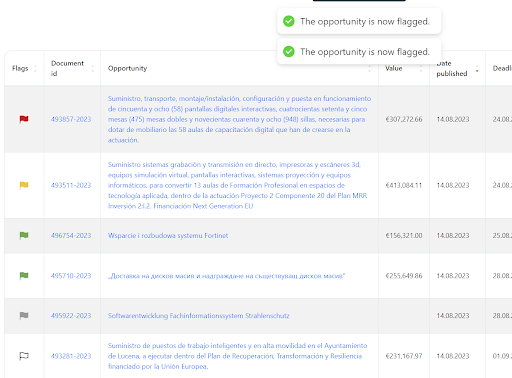
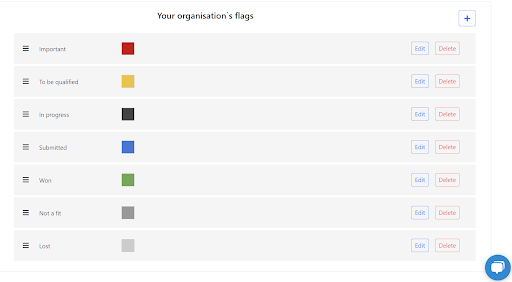
Comment créer des drapeaux personnalisés ?
You can customize the flags for your organization, change the labels and colors, and even add additional flags, e.g. ”Monitor for renewals”. The setting applies to the entire organization.
Where to find detailed spending information and other documents about an buyer?
Only the European Commission publishes detailed spending. Check the EC spending menu in Hermix.
Certaines agences de l'UE publient également sur leur site web des informations concernant des marchés spécifiques, mais sous une forme libre, et non sous forme d'informations structurées.
For example, ECDC published their specific contracts here:
https://www.ecdc.europa.eu/sites/default/files/documents/List_of_specific_contracts_LCK_2022.pdf
https://www.ecdc.europa.eu/sites/default/files/documents/List-of-specific-contracts-2021.pdf
https://www.ecdc.europa.eu/sites/default/files/documents/Specific-contracts-ECDC-2020.pdf
https://www.ecdc.europa.eu/sites/default/files/documents/List%20of%20specific%20contracts%202019.pdf
Comment résumer des appels d'offres grâce à l'IA ?
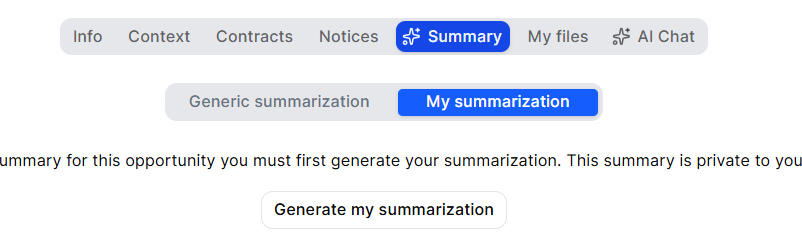
Pour générer un récapitulatif de l'appel d'offres, rendez-vous sur la page de l'opportunité, puis cliquez sur le bouton “ Générer un récapitulatif de l'appel d'offres ”.
Then, when the summarization is ready, you will receive an email, and you will be able to see the tender summary in the opportunity page:
Can I export tenders?
Yes, you can export tenders as PDF.
Do you automatically download documents for Luxembourg national tenders?
- We do not download automatically, yet, the tender documents for Luxembourg national tenders.
- We are working on this.
- We will let you know when this will be available.
- In the meantime, you can upload yourself the tender documents, here.
- And then you can generate your own summarization with Hermix, for your documents, here.
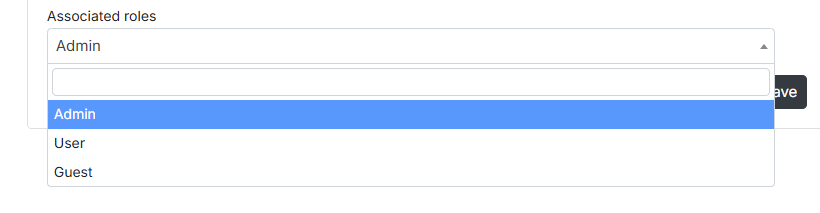
What is the difference between guest, user and admin?
Guests have access to the main features, searches, alerts, and tender monitoring, but with a few quantitative limits.
Guests can:
- Perform searches and monitor tenders
- Create up to 4 active email alerts.
- Access 1 advanced market intelligence report per month (e.g., market analytics, company or authority profiles, AI tender summarization, or commercial analyses).
- Perform 1 Excel export per month.
- Flag and assign up to 4 new opportunities per month.
Limitations:
- No access to User and Admin settings.
- Cannot create, edit, or delete users.
Users are full-access users in enterprise accounts. They can use Hermix without limits, but cannot manage organization settings.
Users can:
- Perform searches, reports, exports, and opportunity management.
- Collaborate with colleagues inside their organization.
- Access all AI analytics and market intelligence.
Limitations:
- Cannot create, edit, or delete users.
- Cannot configure organization-wide settings (e.g., flag colors or labels).
Admins have full access to both platform features and organization management. They can control users, permissions, and customization settings.
Admins can:
- Do everything a User can.
- Can create, edit, or delete users.
- Customize Hermix for the entire organization (e.g., define flag colors, labels, or workflows).